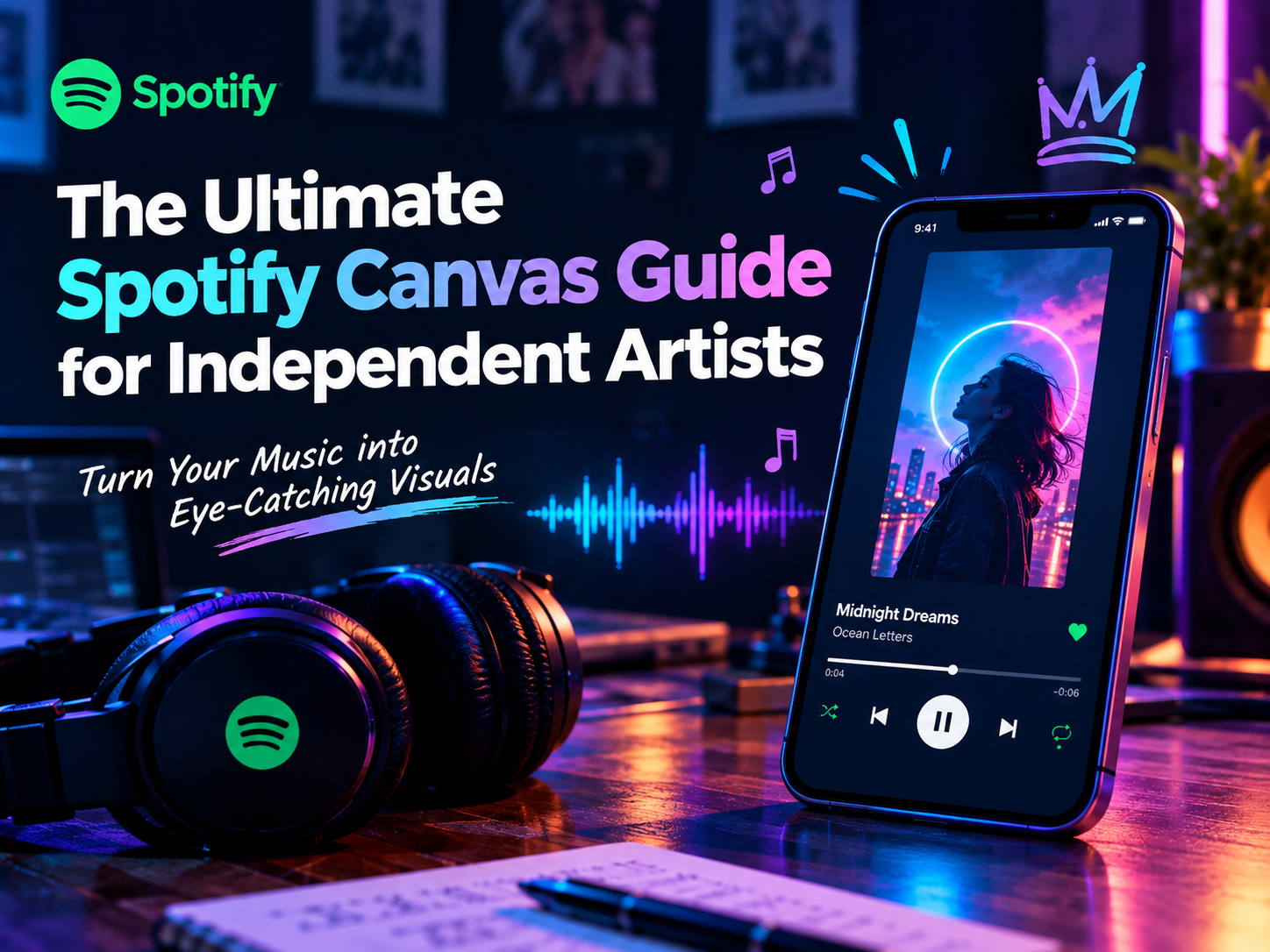
Want to make your music stand out on Spotify? A compelling Spotify Canvas transforms your track into a short, looping visual that strengthens your release identity and encourages fan engagement. With AI tools, independent artists can create engaging visuals without hiring a professional video team.
Why Spotify Canvas Matters for Independent Artists
Spotify Canvas adds motion to your tracks through vertical video loops. Engaging visuals can help make your music more memorable, reinforce your artistic identity, and give listeners another reason to connect with your releases.
An effective Canvas should:
- Match your song's mood and genre.
- Capture attention quickly.
- Use smooth motion and clear composition.
- Look good on mobile screens.
How to Create a Spotify Canvas with Image to Video AI
You don't need to film a new music video. With photo to video ai free you can transform album covers, artist portraits, and other static artwork into dynamic visuals for your music release. A spotify canvas generator workflow makes it easier to experiment with different visual concepts before choosing one that fits your track.
Try FlyU Image to Video AI and follow these steps to create your own Spotify video loops.
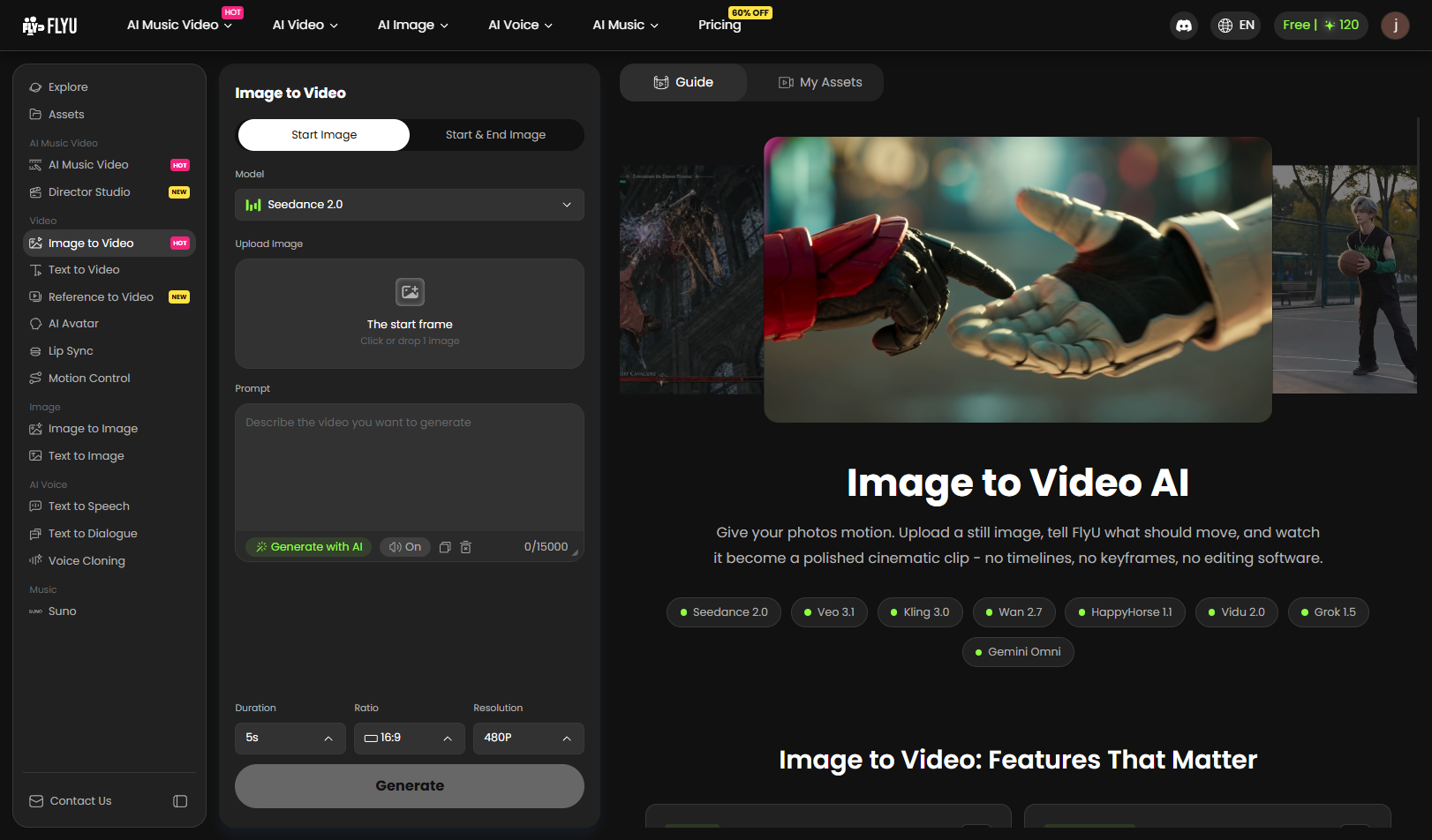
Step 1: Upload Your Starting Image
Upload an image to use as the starting frame. Choose album artwork, an artist portrait, or another visual that fits your music. For the best results, use a high-quality image with a clear subject and enough visual space for movement.
Step 2: Choose an AI Model
Select an available AI model, such as Seedance 2.0, to generate a video based on your image and prompt. Different models may produce different motion styles, so experiment with the available options to find one that fits your creative direction.
Step 3: Describe Your Video
Enter a prompt describing the movement, atmosphere, and visual effects you want. For example, you could request flowing hair, moving lights, a gentle camera zoom, or a cinematic background.
A useful prompt might be:
“Create a dreamy music visual with gentle camera movement, glowing ambient lights, subtle floating particles, and a moody atmosphere. Keep the main subject recognizable and use smooth, natural motion.”
Step 4: Customize Your Video Settings
Choose your preferred duration, aspect ratio, and resolution from the available options. You can use the starting-image mode or the start-and-end-image mode to guide the video's opening and ending frames.
Before generating, consider how the composition will look on a phone screen and whether the motion will work well in a short loop.
Spotify Canvas Guidelines
Basic Canvas Specifications
| Item | Requirement | Description |
| Video duration | 3–8 seconds | Must not exceed 8 seconds |
| Aspect ratio | 9:16 | Vertical format designed to fill the mobile screen |
| Video height | 720–1080 pixels | Must fall within the specified resolution range |
| File format | MP4 or JPG | Use MP4 for video and JPG for static visuals |
| Display location | Spotify’s Now Playing view | Canvas replaces the album cover in the Now Playing view |
| Playback method | Looping playback | Choose an appropriate loop type based on the visual content |
Step 5: Generate and Refine
Click Generate to create your video. Review the result and adjust your prompt or settings to explore different visual effects.
If the movement feels too dramatic, try a more subtle prompt. If the ending looks abrupt, experiment with slower motion or a more consistent visual direction.
3 Spotify Canvas Styles Worth Trying
The best visual style depends on your music, genre, and artist identity. Here are three approaches to try with a spotify canvas creator workflow.
1. Seamless Loop
Use flowing waves, drifting particles, flickering lights, or subtle camera movement to create a smooth, continuous visual. This style works well for ambient, electronic, lo-fi, and chill music.
2. Story Loop
Build a short visual moment inspired by your lyrics, chorus, or the emotion behind your song. A character turning toward the light, a city at night, or a slowly moving landscape can suggest a story without requiring a full music video.
3. Audio-Inspired Visuals
Explore rhythmic shapes, pulsing light, and abstract patterns that complement electronic, hip-hop, or experimental music. An AI music visualizer can help you explore visual ideas that complement your sound.
Experiment with different prompts and styles to develop a distinctive visual identity for your releases.
Upload, Test, and Improve Your Canvas
Once your clip is ready, prepare it according to Spotify's current Canvas specifications and upload it through Spotify for Artists. Check the latest requirements before publishing, since platform specifications may change.
Preview the result on mobile to check framing, visual clarity, and loop transitions. Avoid placing important visual details too close to the edges, and make sure the motion complements rather than distracts from your artwork.
You can also experiment with different visual concepts across releases and monitor available performance metrics, such as track shares, saves, and playlist adds. Use these insights to refine your approach over time.
If you're looking for a free Spotify Canvas maker, start with artwork you already have, generate a few variations, and select the one that best represents your music. A spotify canvas generator can help you explore different visual directions and develop a consistent look for future releases. Check the current access and usage terms of your chosen tool before starting.